

Power outages can happen unexpectedly and may leave your computer turned off until someone manually powers it back on. Whether you use your PC for remote work, home servers, business operations, security systems, or automated tasks, configuring your computer to automatically restart after a power failure can save time and prevent interruptions.
Why Power Outages Are a Real Threat
A power outage does not just turn off your computer. It can also create surges, sudden shutdowns, and unstable power delivery when electricity comes back. These events may damage sensitive components, corrupt operating system files, or prevent the machine from booting normally.
That is why protecting your system before trouble starts is always better than trying to repair it afterward. A few simple settings and devices can make a major difference in how well your computer survives a power failure.
What Causes Power Failures
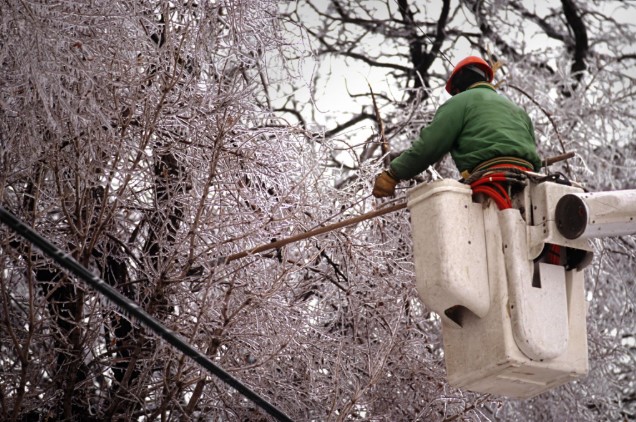
Power outages happen for many reasons, and some are more predictable than others. Severe weather is one of the most common causes, especially lightning, strong winds, ice storms, and flooding. These can damage power lines, transformers, and utility poles.
Other causes include equipment failure, overloaded electrical systems, accidents, wildlife interference, falling trees, and construction damage. Even short blinks or momentary interruptions can cause problems if your computer is not properly protected.
First Line of Defense: Surge Protectors
A surge protector is one of the most basic tools for protecting your computer setup. It helps shield your equipment from smaller power fluctuations and sudden spikes that can happen when electricity returns after an outage.
For best results, plug your computer, monitor, modem, and router into a quality surge-protected power strip rather than directly into the wall. If a major storm is approaching, unplugging equipment from the wall during a lightning event is still a smart precaution because no surge protector can fully defend against a direct strike.
Why a UPS Is Even Better
An uninterruptible power supply, or UPS, gives you much stronger protection than a standard surge strip. A UPS contains a battery that keeps your PC running briefly during a blackout or brownout, giving you time to save work and shut down safely.
This short battery window is especially useful for desktops, servers, and remote-access systems. It can prevent sudden shutdowns that often lead to file corruption or startup problems later. Some modern UPS units can also communicate with your computer so it can shut down automatically before the battery is exhausted.
How to Make Your PC Restart Automatically
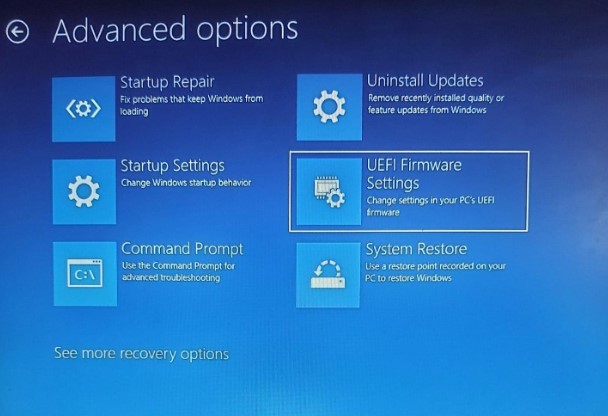
If you want your computer to come back on after power returns, the most important setting is usually found in the BIOS or UEFI firmware. This is not a Windows or Linux setting. It is a hardware-level power option that tells the machine how to behave after electricity is restored.
You will usually need to restart your computer and press a setup key such as Del, F2, F10, or Esc during boot. The exact key depends on the manufacturer, so you may need to watch the startup screen carefully. Once inside the BIOS or UEFI menu, look for a setting related to power recovery or AC loss behavior.
BIOS Setting You Should Change
The setting may appear under names like:
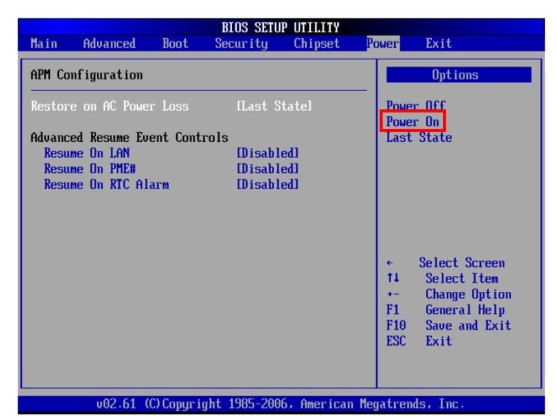
- Restore on AC/Power Loss.
- AC Power Recovery.
- After Power Failure.
- Power On After Power Fail.
- State After G3.
Change the option to Power On if you want the machine to restart automatically whenever power is restored. Some systems also offer Last State, which makes the computer return to whatever condition it was in before the outage. After making the change, save and exit the firmware menu.
What to Do for Windows Systems
If your computer runs Windows, the BIOS setting is still the most important part of automatic restart after an outage. But if power loss caused system file damage or a failed startup, Windows may need recovery steps as well.
In that case, Safe Mode, Startup Repair, or recovery tools may help the system boot normally again. If the machine is used for remote work or file syncing, make sure login and startup programs are configured so the device becomes usable again without manual setup every time.
What to Do for Linux Systems
Linux systems can also be affected by sudden shutdowns, even if the operating system is generally stable. A power interruption can still damage files, interrupt services, or block normal startup.
For Linux servers and unattended computers, you may want to configure the BIOS to power on automatically, set the bootloader to skip delays, enable auto-login if appropriate, and configure important services to start at boot. If the system is in a hard-to-reach location, these extra steps are especially valuable.
How to Use a UPS Correctly
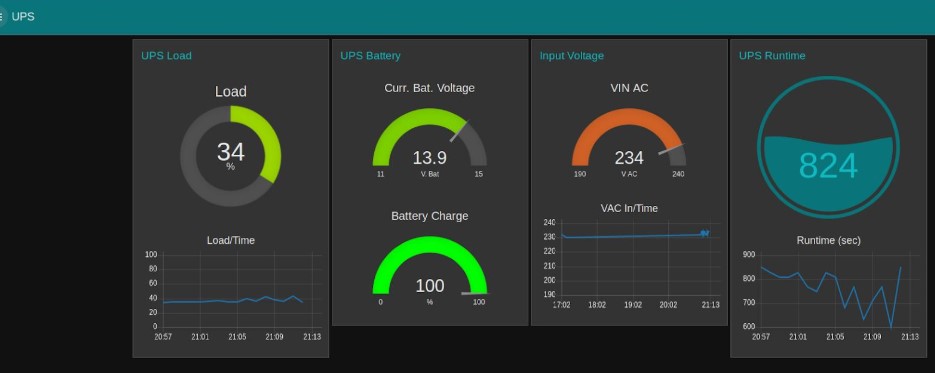
A UPS works best when it is connected properly. Plug your PC and monitor directly into the UPS outlets, and connect the UPS to the wall so it can stay charged. If the UPS includes monitoring software, install it so the system can track battery status and shut down safely when needed.
Do not rely on the UPS as a permanent power source. Its role is to give you enough time to save your work, protect your files, and avoid sudden shutdowns. Think of it as an emergency bridge, not a long-term replacement for utility power.
Smart Power Protection Tips
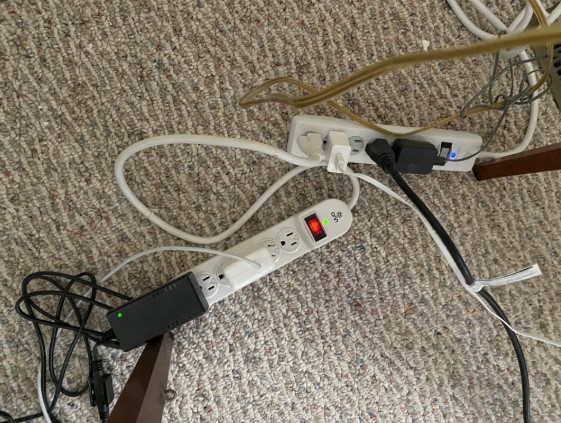
A few simple habits can improve your protection dramatically. Keep critical devices on surge protection, use a UPS for your main computer, and test your restart settings before an outage happens. If your environment suffers frequent outages, it is worth investing in better battery backup and stronger firmware settings.
You should also make sure your modem and router are protected if you depend on internet connectivity. For remote workers or home offices, staying connected after a blackout can be just as important as keeping the PC itself running.
Protection Options Compared
| Protection Method | What It Does | Best For |
|---|---|---|
| Surge protector | Reduces damage from small spikes and fluctuations | Basic everyday protection |
| UPS | Provides battery backup and safe shutdown time | PCs, servers, remote work setups |
| BIOS auto-restart | Turns the computer back on after power returns | Unattended systems and home offices |
| Safe Mode recovery | Helps a damaged system boot again | Windows and Linux troubleshooting |
Common Mistakes to Avoid
One common mistake is assuming a surge strip alone is enough. It helps, but it does not provide battery backup or automatic recovery after a blackout. Another mistake is forgetting to check BIOS settings, because many computers will stay off after a power failure unless this option is enabled.
People also forget to test their setup. If you need the computer to come back online automatically, test the system while conditions are safe so you know exactly how it behaves. That way, you will not be surprised during a real outage.
A strong blog on this topic should focus on prevention, recovery, and setup steps. Readers want a clear explanation of what to buy, what setting to change, and how to reduce the risk of damage.
Conclusion
Power outages can be disruptive, but they do not have to take your computer down with them. By using a surge protector, adding a UPS, and enabling automatic power recovery in BIOS, you can greatly improve your chances of staying protected and getting back online quickly.
If your computer is essential for work or business, this is one of the smartest maintenance tasks you can do. A little preparation now can save time, data, and hardware later.
FAQs
1. What is the best way to keep my computer safe during a power outage?
Use a UPS, a good surge protector, and BIOS auto-restart settings for the best protection.
2. Will a surge protector keep my PC running during a blackout?
No. A surge protector helps against spikes, but only a UPS provides temporary backup power.
3. Where do I change the auto-restart setting?
Usually in the BIOS or UEFI firmware under power management or AC power recovery settings.
4. Can Linux and Windows both restart automatically after a power failure?
Yes, as long as the BIOS is configured correctly and the operating system is set up properly for startup.
5. Is a UPS worth it for home users?
Yes, especially if you use your PC for work, storage, remote access, or anything that cannot afford sudden shutdowns.
Final Thoughts
Setting up automatic restart after a power outage is a simple but valuable feature that improves system reliability. Whether you manage a home office, business workstation, or dedicated server, enabling this BIOS setting helps ensure your computer returns to operation as soon as electricity is restored