
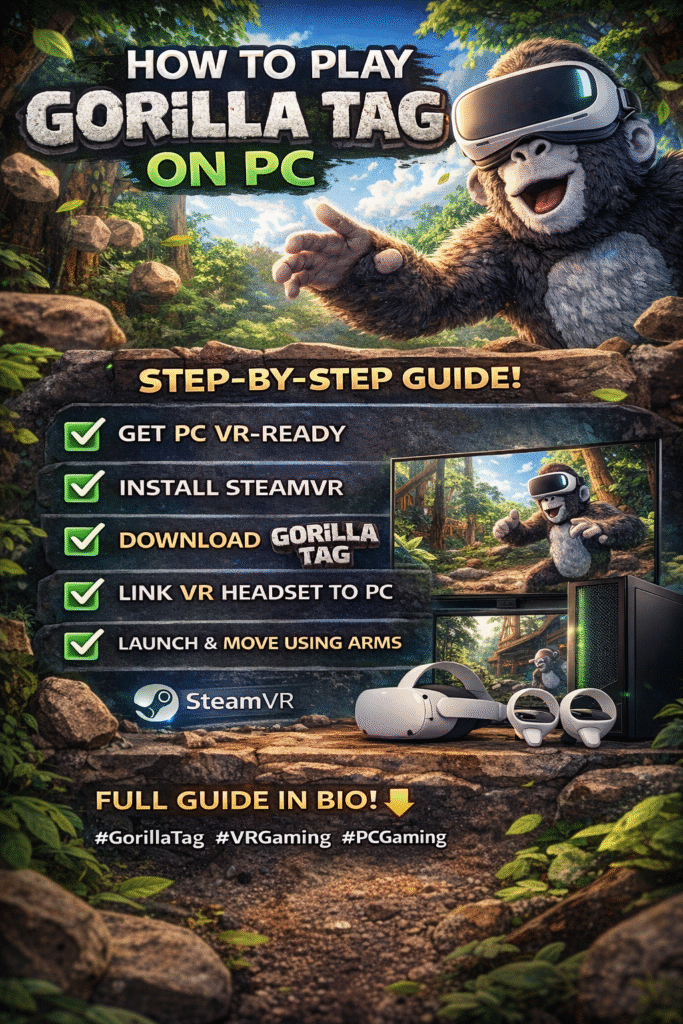
🦍 How to Play Gorilla Tag on PC
Gorilla Tag is one of the most popular VR multiplayer games, known for its unique arm-movement locomotion, fast-paced gameplay, and chaotic fun. While many players experience Gorilla Tag on standalone VR headsets, you can also play Gorilla Tag on PC using PC VR.
This guide explains exactly how to play Gorilla Tag on PC, even if you are a beginner.
In this guide, you’ll learn:
✔ What Gorilla Tag is
✔ PC requirements
✔ VR headset compatibility
✔ Step-by-step setup on PC
✔ Controls & gameplay basics
✔ Performance optimization
✔ Common issues & fixes
What Is Gorilla Tag?
Gorilla Tag is a VR multiplayer movement-based game where players move using their arms instead of joysticks. You run, jump, climb, and tag other players by physically swinging your arms.
Key features:
• No buttons for movement
• Physics-based locomotion
• Competitive multiplayer modes
• Strong community & mods
Can You Play Gorilla Tag on PC?
Yes, but only with a VR headset.
Gorilla Tag is a VR-only game and cannot be played with mouse & keyboard.
You must use:
• A VR headset
• A VR-ready PC
• SteamVR
PC Requirements to Play Gorilla Tag
Minimum PC Requirements
• OS: Windows 10 / 11 (64-bit)
• CPU: Intel i5 / Ryzen 5 or better
• GPU: GTX 1060 / RX 580 or higher
• RAM: 8 GB (16 GB recommended)
• Storage: SSD recommended
Internet
• Stable broadband connection (for multiplayer)
VR Headsets Compatible with Gorilla Tag on PC
Gorilla Tag supports PC VR through SteamVR.
Compatible Headsets:
• Meta Quest 2 (via Link / Air Link)
• Meta Quest 3
• Valve Index
• HTC Vive
• Windows Mixed Reality headsets
❌ No VR headset = no Gorilla Tag.
Step-by-Step: How to Play Gorilla Tag on PC
🔹 Step 1: Install Steam
- Go to the official Steam website
- Download and install Steam
- Create or log in to your Steam account
🔹 Step 2: Install SteamVR
- Open Steam
- Search for SteamVR
- Click Install (Free)
- Launch SteamVR once installation is complete
SteamVR is required for all PC VR games.
🔹 Step 3: Download Gorilla Tag
- Open Steam
- Search for Gorilla Tag
- Click Play Game (it’s free)
- Let the game download
🔹 Step 4: Connect Your VR Headset to PC
For Meta Quest Users:
You have two options:
Option A: Meta Quest Link (Wired)
• Connect Quest to PC using a USB-C cable
• Enable Quest Link in headset settings
Option B: Air Link (Wireless)
• PC and headset on same Wi-Fi network
• Enable Air Link in Meta Quest settings
Both methods work for Gorilla Tag.
🔹 Step 5: Launch Gorilla Tag in VR
- Put on your VR headset
- Launch SteamVR
- Open Gorilla Tag from Steam
- The game loads directly into VR
You are now ready to play.
Gorilla Tag Controls on PC (VR)
Gorilla Tag uses no joystick movement.
Movement Basics:
• Swing arms to move forward
• Push against surfaces to jump
• Grab walls to climb
• Use momentum to gain speed
Buttons:
• Grip → Grab surfaces
• Trigger → Menu interactions
• Joystick → Camera turning (optional)
👉 Movement is 100% physical.
Beginner Gameplay Tips
✔ Start slow — movement takes practice
✔ Use walls to gain momentum
✔ Keep arms low for better control
✔ Take breaks to avoid motion fatigue
✔ Adjust turning speed in settings
Best Settings for Smooth Performance
Recommended Settings:
• SteamVR Resolution: Auto or 100%
• Disable motion smoothing if laggy
• Set in-game graphics to Medium
• Close background apps
Why This Matters:
• Reduces motion sickness
• Improves tracking accuracy
• Prevents lag in multiplayer
Common Problems & Fixes
❓ Gorilla Tag Not Launching in VR
✔ Make sure SteamVR is running
✔ Launch from inside VR
✔ Update GPU drivers
❓ Lag or Stuttering
✔ Lower SteamVR resolution
✔ Use wired Quest Link
✔ Close background apps
❓ Controller Not Tracking
✔ Re-pair controllers
✔ Check headset lighting
✔ Restart SteamVR
❓ Can I Play Gorilla Tag Without VR?
❌ No. Gorilla Tag requires a VR headset.
🌐 Can You Play Gorilla Tag on PC Without Meta Quest?
Yes — as long as you have:
• Valve Index
• HTC Vive
• Windows Mixed Reality headset
Meta Quest is popular but not required.
Is Gorilla Tag Free on PC?
✅ Yes
Gorilla Tag is completely free on Steam.
Optional:
• Cosmetic purchases (non-pay-to-win)
Is Gorilla Tag Safe for Kids?
Gorilla Tag has:
• Open voice chat
• Public multiplayer lobbies
Parents should:
✔ Enable parental controls
✔ Monitor voice chat usage
✔ Use private lobbies when needed
Future of Gorilla Tag on PC
• Continued updates
• Strong modding community
• New maps & game modes
• Growing competitive scene
Gorilla Tag remains one of the most active VR multiplayer games.
❓ FAQs
Can I play Gorilla Tag on PC without VR?
No. VR is mandatory.
Is Gorilla Tag on Steam?
Yes, and it’s free.
Does Gorilla Tag support mods on PC?
Yes, but only unofficial mods — use cautiously.
Is Gorilla Tag hard to learn?
Easy to start, hard to master.
Can low-end PCs run Gorilla Tag?
Yes, if VR-ready and optimized.
Final Thoughts
Playing Gorilla Tag on PC is an amazing experience if you have:
✔ A VR headset
✔ A VR-ready PC
✔ SteamVR
The setup is simple, the game is free, and the gameplay is unlike anything else in VR.
If you enjoy fast movement, competitive multiplayer, and pure physical gameplay, Gorilla Tag on PC is absolutely worth it.